
Welcome back, future Indian Statistical Service (ISS) officers!
In our previous article, we dissected the Central Processing Unit (CPU) and understood how a computer executes basic instructions. However, a processor, no matter how incredibly fast, is absolutely useless if it does not have a dedicated place to store and retrieve the data it needs to process. This brings us to one of the most frequently tested areas in the UPSC ISS Paper I syllabus: Computer Memory and Storage Systems.
The memory architecture of a computer system is a goldmine for the exam. Every year, UPSC asks 2 to 3 direct questions on Cache memory, Virtual memory allocation techniques, the functions of ROM, and the structural differences between traditional Hard Disk Drives (HDDs) and modern Solid State Drives (SSDs).
Today, we will break down the memory hierarchy, distinguish between primary and secondary storage, and understand exactly how the computer manages its data.
The Memory Hierarchy: Speed vs. Capacity
A computer does not rely on just one type of memory. Instead, it uses a strategically layered “Memory Hierarchy” to balance speed, capacity, and cost. As you move closer to the CPU, the memory becomes extremely fast, highly expensive, and very small in capacity. As you move further away, it becomes slower, much cheaper, and massive in storage size.
The standard memory hierarchy operates in the following order (from fastest to slowest):
- CPU Registers: Located directly inside the processor. They hold the exact instruction and data the CPU is processing at that very microsecond. They are the fastest and smallest memory units in a computer system.
- Cache Memory: A highly responsive, high-speed memory placed very close to the CPU (often on the same chip). It stores the most frequently used data and instructions to speed up processing.
- Main Memory (Primary Storage): This includes Random Access Memory (RAM) and Read-Only Memory (ROM). The CPU continuously interacts with main memory to fetch active programs.
- Secondary Storage (Auxiliary Memory): This includes Hard Disk Drives (HDDs), Solid State Drives (SSDs), Optical Disks (CDs/DVDs), and Magnetic Tapes. It permanently stores massive amounts of data, but the CPU cannot access it directly without loading it into the RAM first.
Primary Memory: The Operating Core (RAM and ROM)
Primary memory, or internal memory, is the storage space where the computer holds the active data and instructions that are currently required for processing. Since internal memory is relatively expensive, its capacity is usually limited compared to secondary storage. It is broadly divided into two types:
A. Random Access Memory (RAM)
RAM is a volatile memory. This means that any data stored in RAM is instantly erased the moment the computer’s power is turned off. When you open a program (like a web browser or a statistical software package), the operating system copies the software from the secondary storage into the RAM so the CPU can execute it quickly.
B. Read-Only Memory (ROM)
ROM is non-volatile memory. The data written on a ROM chip cannot be easily modified or erased, and it remains intact even when the power is switched off. ROM is crucial because it stores the essential instructions required to start (boot) the computer.
Professional Insight on BIOS: The most famous program stored in ROM is the Basic Input/Output System (BIOS). When you press the power button on your computer, the BIOS executes a Power-On Self-Test (POST) to ensure all hardware components are functioning properly. It then boots the computer system and acts as an interface, providing hardware-independent access to the physical devices so the Operating System can take over.
Cache Memory: Bridging the Speed Gap
Modern CPUs are incredibly fast, but standard Main Memory (RAM) is relatively slow in comparison. If the CPU had to wait for RAM to fetch data every single time, the entire system would bottleneck.
To solve this, hardware engineers introduced Cache Memory. Cache acts as a high-speed buffer between the CPU and the Main Memory. When the CPU searches for data to execute an instruction, it always refers to the Cache memory first. If the data is found in the cache (a “Cache Hit”), the CPU retrieves it instantly. If it is not found (a “Cache Miss”), the CPU must pull it from the slower RAM.
Virtual Memory & Physical Allocation Techniques
What happens when your computer runs out of physical RAM? Instead of crashing, the operating system uses a clever software trick called Virtual Memory. Virtual memory allows a computer to compensate for physical memory shortages by temporarily transferring data from RAM to disk storage (secondary memory). It creates an illusion for the user that there is a large, continuous addressable space available.
To manage how physical memory is utilized and allocated, the system uses specific memory management techniques:
- Paging: Dividing the physical memory into fixed-size blocks called “pages”.
- Segmentation: A technique of dividing the physical memory space into multiple, variable-sized blocks (segments) based on logical divisions of the program.
Secondary Storage: Hard Disk Drives (HDDs) vs. Solid State Drives (SSDs)
Secondary memory is the key for permanent data storage. For decades, the standard for secondary storage has been the Hard Disk Drive (HDD). HDDs store data magnetically on rapidly spinning platters. Because they rely on physical, mechanical moving parts (a spinning disk and a moving read/write head), they generate heat, consume a lot of power, and are susceptible to physical damage if dropped.
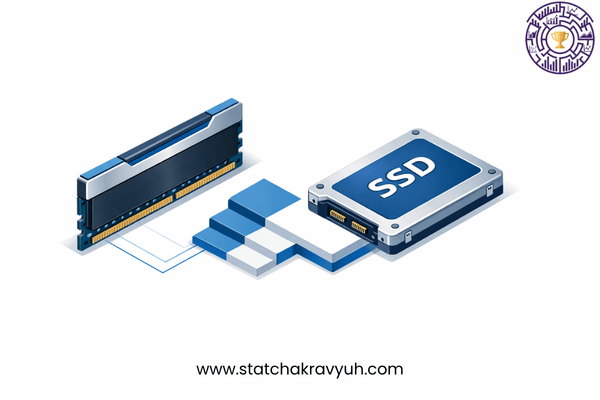
In recent years, Solid State Drives (SSDs) have revolutionized data storage. SSDs are built using solid-state technology (like NAND flash memory) and have no mechanical moving parts.
From an exam perspective, you must know why SSDs are vastly superior to traditional HDDs:
- Better Performance: Because there are no moving parts, data access speed is remarkably faster.
- Low Power and Heat: They consume significantly less battery power and generate almost zero heat.
- High Reliability: The lack of mechanical parts makes them highly durable and resistant to physical shocks. Note: The only major disadvantage of an SSD compared to an HDD is that SSDs are generally more expensive (higher price per gigabyte).
UPSC ISS Previous Year Questions (PYQ) Analysis
Let us test these concepts against actual UPSC ISS Previous Year Questions to understand how the commission frames its options.
Q. Which one of the following memory locations is first referred to by the CPU while searching for data?
(a) ROM (b) Secondary memory (c) Main memory (d) Cache memory
Professional Analysis: To maximize processing speed and avoid bottlenecks, the CPU does not fetch data directly from the relatively slow Main Memory (RAM). Instead, it always checks the highly responsive internal Cache memory first.
Correct Answer: (d) Cache memory.
Q. Consider the following:
I. Better performance
II. Low price
III. Low power and heat
IV. High reliability
Which of the above are advantages of solid-state storage devices (SSDs) as compared to hard disk drives?
(a) I, II and III (b) I, II and IV (c) I, III and IV (d) II, III and IV
Professional Analysis: Because SSDs lack mechanical moving parts, they offer significantly better performance (I), consume lower power and generate less heat (III), and boast high reliability against physical shocks (IV). However, the cost of manufacturing flash memory makes them substantially more expensive than traditional HDDs. Therefore, “Low price” (II) is incorrect.
Correct Answer: (c) I, III and IV.
Q. Consider the following types of memory in computer systems:
1. Cache memory
2. ROM
3. Optical disks
4. Registers
Which of the above are types of internal process memory?
(a) 1 and 2 only (b) 1, 2 and 4 only (c) 1 and 4 only (d) 2, 3 and 4 only
Professional Analysis: Internal memory refers to the memory components housed directly on the motherboard or inside the processor that the CPU utilizes for core operations. This includes CPU Registers, Cache memory, and ROM/RAM. Optical disks (CDs/DVDs) are external/secondary storage devices.
Correct Answer: (b) 1, 2 and 4 only.
Q. What are the functions of BIOS in computer system?
I. It performs power-on self-test.
II. It boots the computer system.
III. It provides hardware-independent access to the physical devices.
(a) I and II only (b) II and III only (c) I and III only (d) I, II and III
Professional Analysis: The Basic Input/Output System (BIOS), stored in the ROM, acts as the primary bridge between the hardware and the operating system. When the machine is turned on, it executes the Power-On Self-Test (POST), initiates the boot sequence, and grants the operating system standard access to physical hardware devices.
Correct Answer: (d) I, II and III.
Q. The technique of dividing the physical memory space into multiple blocks is known as:
(a) Page replacement (b) Segmentation (c) Fragmentation (d) Swapping
Professional Analysis: In memory management, dividing physical memory space into specific, logical, multiple blocks for efficient allocation and tracking by the operating system is structurally known as Segmentation.
Correct Answer: (b) Segmentation.
What Lies Ahead?
In this second installment of the Computer Series for UPSC ISS, we successfully navigated how a computer stores its data, bridging the gap between blazing-fast CPU Registers and permanent Solid State Drives. We also analyzed how the operating system handles data constraints using Virtual Memory and Segmentation.
However, a computer is essentially an isolated box without mechanisms to interact with the human user. How does the machine capture our commands, and how does it display its final processed data to the outside world?
In Part 3, we will transition to Interacting with the Machine: Input, Output, and Peripherals. We will break down high-yield UPSC topics ranging from Optical Recognition devices (OMR, OCR, MICR) to the operational differences between impact and non-impact printers. Ensure you revise today’s concepts thoroughly and stay tuned as we systematically conquer the UPSC ISS computer syllabus.
(Have a specific doubt about Cache memory hit rates, Virtual memory, or the technical differences between SSDs and HDDs? Drop it in the comments below!)
[…] our previous article, we explored the internal architecture of computer memory, understanding how a system balances […]
[…] Part 2, we will seamlessly transition into Memory Management and Storage Systems. We will conduct a deep […]